Chapter 4
Working With WebScan System Tray Icon
This chapter covers the options of the WebScan system tray icon, WebScan logs and how to configure the WebScan settings and includes the following sections:
u About WebScan System Tray Icon
u Configuring WebScan Settings
u Configuring Updater Settings
About WebScan System Tray Icon
This section introduces a user to all the options of the WebScan system tray icon.
The WebScan system tray option has the following options:
l Open Log Viewer - Opens the WebScan log viewer.
l Settings - Configures the WebScan application.
l Check For Updates - Manually checks for a new version of the application.
l About - Shows the current version and the copyright information of the application.
l Exit - Exits the application.
A user can use the log viewer to review the logs of the last seven days. Logs are generally intended to be used when working with support personnel to assist in resolving problems that may occur.
u View a WebScan Log File
1.Right-click on the WebScan system tray icon and click on Open Log Viewer to open the WebScan Log Viewer window displays.
a. From the Select Log drop-down list, select the desired session's log entry.
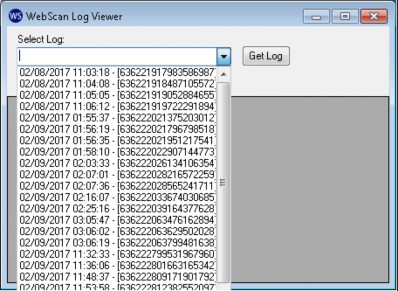
b. To display the desired session’s log details, click Get Log.
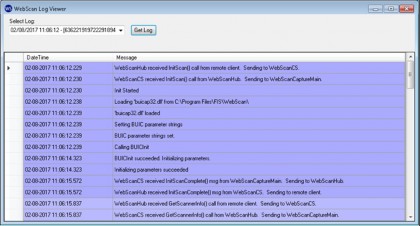
The desired sessions log details (date, time and message) are displayed in the window.
2.Click Close to exit the log viewer.
This section covers how to configure the Panini Settings, Origin Domain Settings and the Updater Settings of the WebScan application.
Configuring Panini Settings
A user can configure the settings of the Panini scanner by selecting the Panini Settings option from the Setting Type drop-down list. To configure the Panini scanner settings, type the new values in the appropriate fields and click Update. This is the only scanner with configurable settings through WebScan at this time.
Property Name |
Property Value |
|---|---|
Double-Feeding Detection Enabling |
Determines if the double feed detection is enabled or not. This property has two possible values. u 1 indicates double feed detection is enabled. u 0 indicates double feed detection is disabled. The default value is 1(enabled). |
Power for Double-Feed Detection |
Sets the power value of the photocell detecting the double feed. A higher value indicates fewer double feeds will be detected. The default property value is 5. |
Delay for Double-Feed Detection |
Sets the delay for double feed detection. The default property value is 50 mm. The allowable range for this property value is 10 mm to 150 mm. If a frequent false double feed is being detected due to a heavily printed signature then increasing the delay may resolve the problem. |
Confidence for Double-Feed Detection |
Sets the percentage of times the sensor must detect a double feed to report the double feed condition. For example, if set at 7, then the sensor must be blocked in 70% or more of the samples to report a double feed. A higher value means fewer double feeds will be reported. The allowable range for this property value is 2 to 10, which means that between 20% to 100% of samples reporting a double feed are required for the device to report a double feed. |
Hole Filter Length |
Sets the hole filter length which is to avoid holes in the paper indicating document end. The default property value is 7 mm. The allowable range for this property value is 5 mm to 10 mm. |
Delay To Start Endorsement |
Sets the delay in print starting, referring to the leading edge of the document. The default property value is 0 mm. The allowable range for this property value is 0 mm to 220 mm. |
Max Symbols in MICR Code-Line |
This parameter can reduce the MICR reading length. The value represents the maximum number of MICR symbols accepted. The default property value is 80 mm. The allowable range for this property value is 10 mm to 80 mm. |
Min Document Length |
Sets the minimum value of the document length that is accepted. The default property value is 80 mm. The allowable range for this property value is 80 mm to 240 mm. |
Max Document Length |
Sets the maximum value of the document length that is accepted. The default property value is 240 mm. The allowable range for this property value is 80 mm to 240 mm. |
This settings determines whether the WebScan application checks for updates or not. Changes made to Updater Settings take effect immediately.
|
Configuring the Updater Settings requires a user with Windows administration rights. Basic users have a read-only view of the option. |
To configure the Updater Settings, make changes to the appropriate fields and click Update.
Property Name |
Property Value |
|---|---|
Check for Updates |
Enables the update functionality. |
Update URL |
The URL from where the application checks for updates. |